
Requisites are checks to perform on the user’s system and then perform actions if the condition is met.
Requisites are performed in order of listing. You can move them up or down in the list and they will execute in order.
Pre-requisites run BEFORE the patching is started. So you can perform checks before patching commences.
Post-requisites are run AFTER the patching is completed.
A description of each requisite is listed below.
Registry File Exists

This requisite condition will check if a file exists on the user’s computer with the path defined by a registry key.
This is useful to check a specific file exists on the user’s computer and if it doesn’t, deciding what to do.
Registry File Does Not Exists
This is the same as above but returns a null value. So it checks if the file does NOT exist and if it doesn’t, it will return true. You can then decide which actions to perform if it doesn’t.
.NET Installed

This condition checks the user’s computer to see if a specific .net framework is installed. If it is, you can then choose what actions to perform.
.NET Not Installed
This condition checks the user’s computer to see if a specific .net framework is NOT installed. If it isn’t, you can then choose what actions to perform.
Local File Exists
This condition checks the user’s computer to see if a specific file exists locally to where the patch system is run from (or a hard-coded path). If it does exist, you can decide what actions to perform.
You can pass a simple filename like myfile.exe, or a subfolder path like myfolder\myfile.exe.
It also supports relative paths (standard Windows path navigation) such as .\myfile.exe (current folder) and ..\myfile.exe (one folder up).
Local File Does Not Exist
This condition checks the user’s computer to see if a specific file DOES NOT exist locally to where the patch system is run from (or a hard-coded path). If it doesn’t exist, you can decide what actions to perform.
You can pass a simple filename like myfile.exe, or a subfolder path like myfolder\myfile.exe.
It also supports relative paths (standard Windows path navigation) such as .\myfile.exe (current folder) and ..\myfile.exe (one folder up).
Run Once
This means ALWAYS run. There are no conditional checks. The action you specify in this requisite are always performed no matter what.
A unique string for this rule will be generated but you can change it freely. Just ensure it doesn’t clash with any other strings. Do not use spaces or strange characters. Just stick to lowercase letters and numbers.
Run Registry File
This can ONLY be used with the “Registry File Exists” condition. If the condition is passed for the registry file check and it does indeed exist, this action will run the file.
Run Local File
This allows you to run a local file, if it exists. Simply specify the path and any command line arguments here.
Wait for Completion – This will HALT the processing of any further requisites in the list until the process has finished running. Useful for DirectX or other dependency installers.
Download and Run
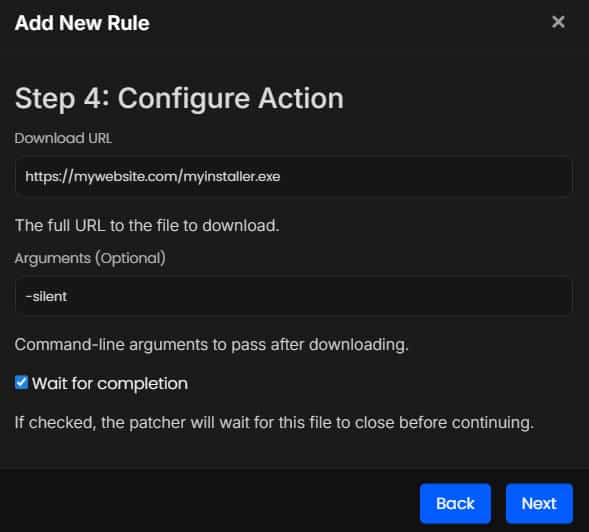
This instructs the patch system to download a specific file from online and then run it with optional command line arguments.
Open URL
This will open the user’s default web browser and navigate in a new tab to the specified URL. You must use the full absolute URL with protocol.
https://mywebsite.com/thispage.htmlShow Message
This will show the user a message in a native popup message prompt.
Patching SuccessfulExit Patch System
This will exit the patch system completely and immediately. No other requisites are run if this is called.
Write Registry Value
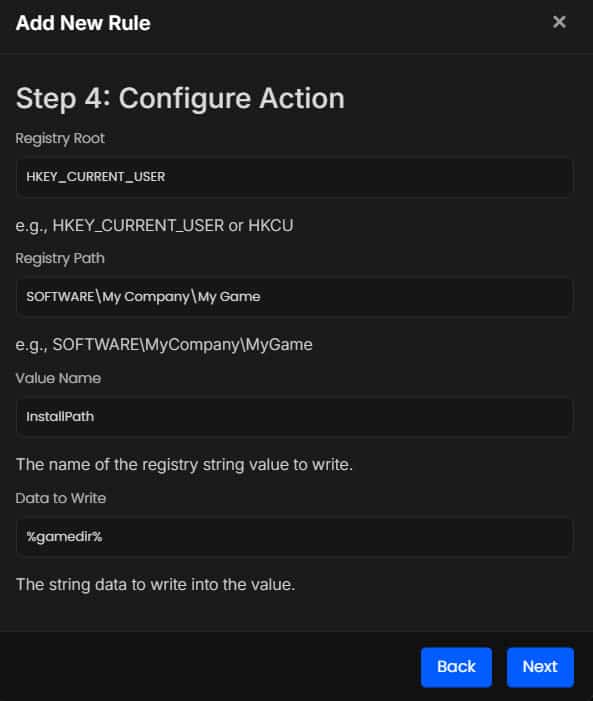
This will exit the patch system completely and immediately. No other requisites are run if this is called.
You can write your own string/value here or you can use one of the internal variables below.
%version% - This writes the current version patched (can only be used in post-requisites).%gamedir% - This writes the current game path what the patch system used. It will write the full directory here.You can also use these variables in Write INI and Write Local File too.
Write Local File
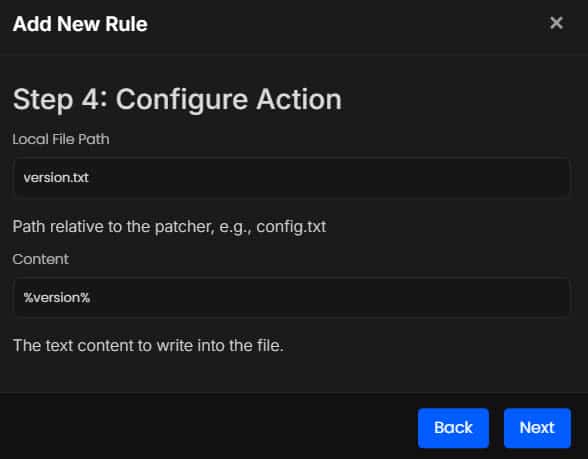
This instructs the patch system to write what you specify to a local file. It will be created if it doesn’t exist.
You can write your own string/value here or you can use one of the internal variables below.
%version% - This writes the current version patched (can only be used in post-requisites).%gamedir% - This writes the current game path what the patch system used. It will write the full directory here.Write INI File
This instructs the patch system to write to an INI file.
Simply specify the relative file path, then the section (without the [ ] and the key name.
You can enter your own text string / value or use a variable.
%version% - This writes the current version patched (can only be used in post-requisites).%gamedir% - This writes the current game path what the patch system used. It will write the full directory here.