/Documentation/Tutorials/Requisites – Launch an Installed File

Requisites – Launch an Installed File

In this tutorial, we show you step by step how to:

  • Check for an installed file via the Registry
  • Launch file if it exists


Requisites are very powerful features of the patch system. They enable you to perform checks and perform actions based off those checks either before patching (pre-requisite) or after patching (post-requisite).

When you are ready to get started, just click the button.
Tutorial Guide

  • 1Introduction
  • 2Create Postrequisite
  • 3Get Registry Information
  • 4Choose an Action
  • 5Conclusion

Introduction

Requisites enable you to test conditions and perform actions in your patch system. This is a Developer Edition feature.

In this tutorial, we will show you how you can check the registry to see if a file exists and launch it as a post-requisite (after patching).

This is useful for example, if your game was installed by an installer, the game directory was written to the registry and you want to launch your game after patch completion.

Step Visual

Create Postrequisite

Head over to Post Requisites in your dashboard.

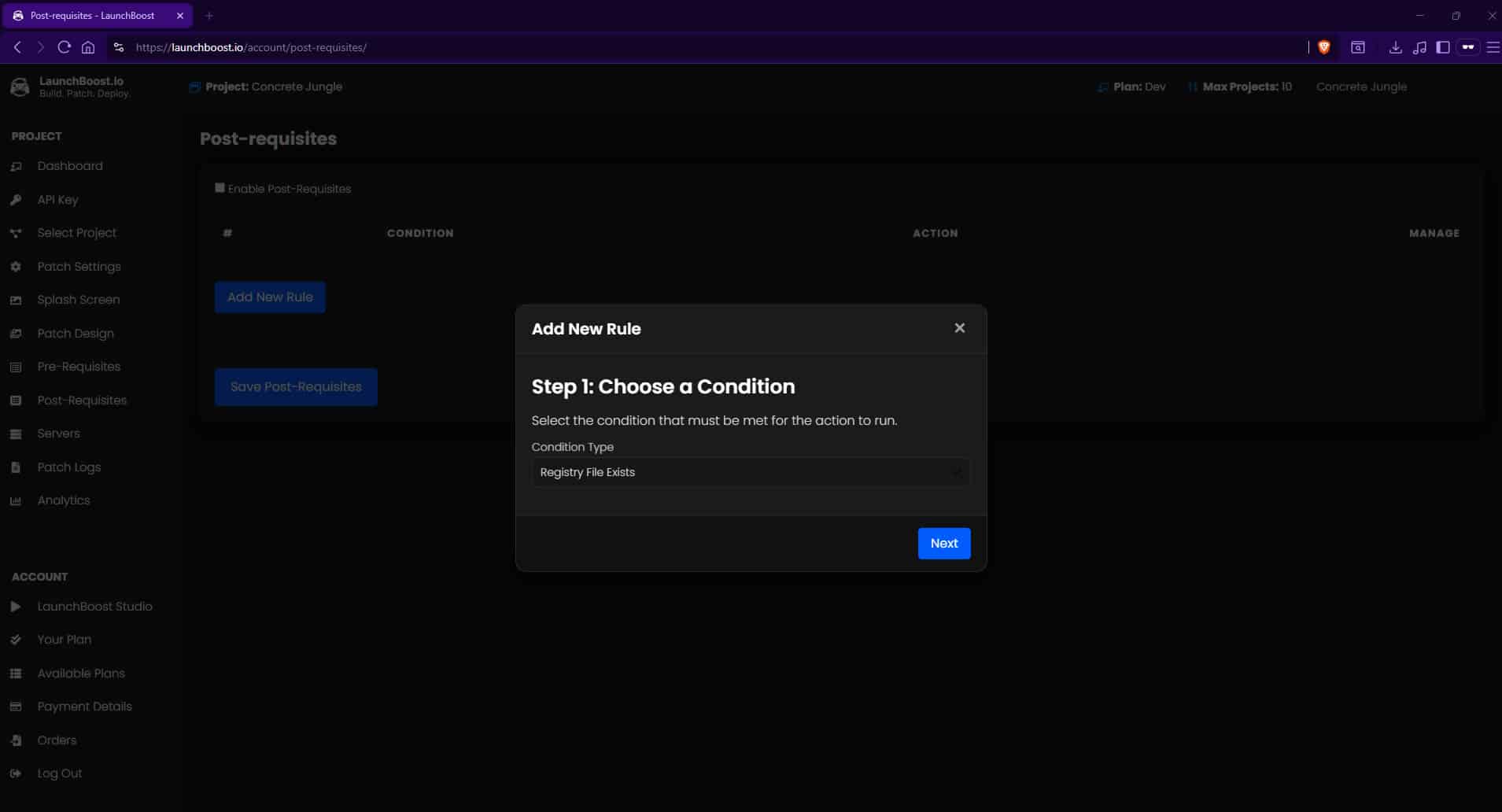
Click on Add New Rule. A dialog will popup. In here, select “Registry File Exists”. This is the condition we are testing.

Click Next.

Step Visual

Get Registry Information

First you need to figure out what you registry details were/are. Where is the key written?

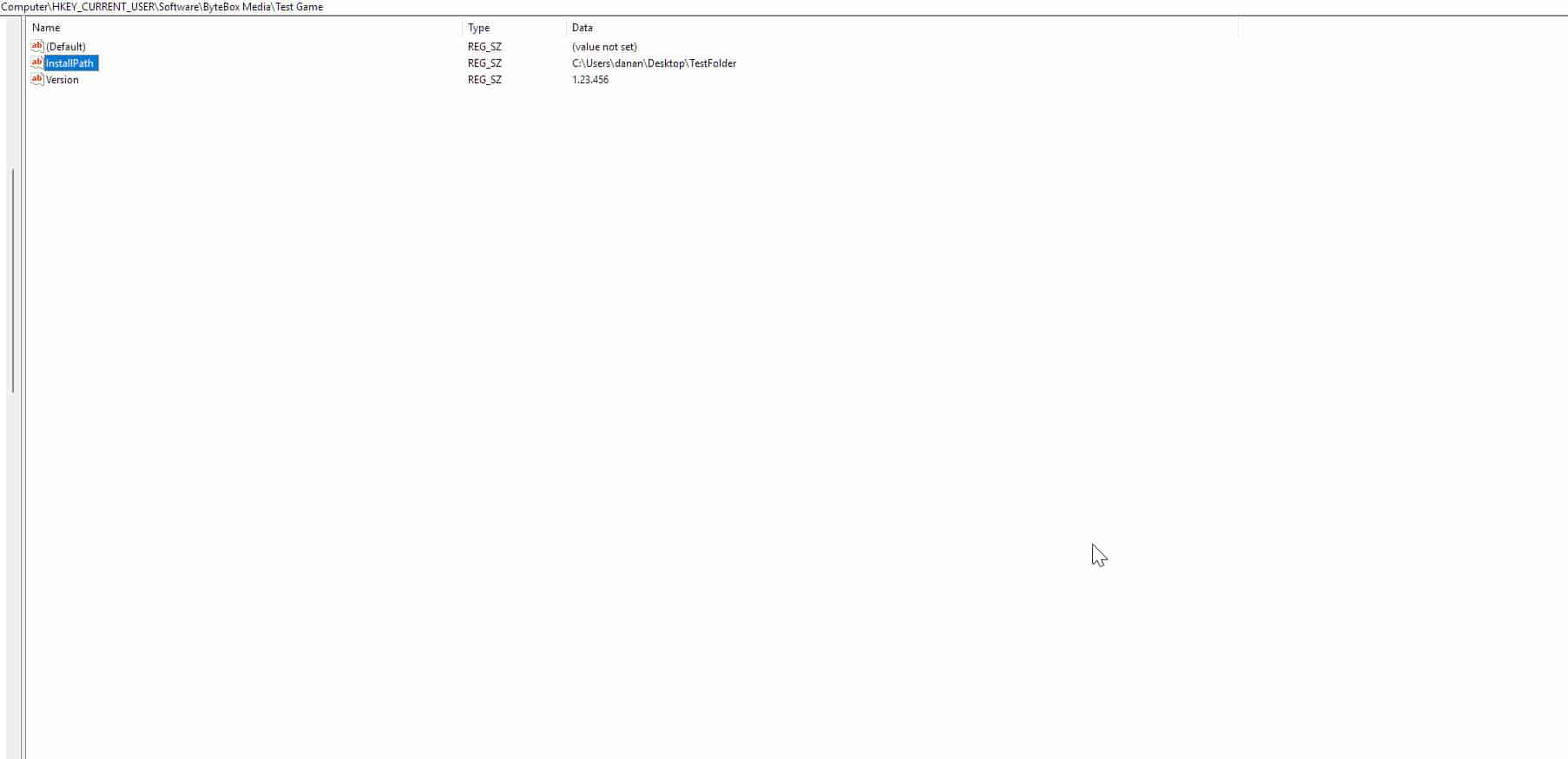
In our example, when the user installed the game, we got the installer to write the installation directory to the registry under HKEY_CURRENT_USER and then Software\ByteBox Media\Test Game and under a key called InstallPath.

So inside our dialog, we need to put HKEY_CURRENT_USER into the Registry Root field.

For the Registry path, we specify the path after> the root. So we put Software\ByteBox Media\Test Game in the Registry Path field.

The key is called InstallPath, so we put that inside Value Name field.

If this key exists, it will find the directory stored in the InstallPath key which in our example is C:\Users\danan\Desktop\TestFolder

So this means our game is installed to this folder. We know our game is called game.exe so we put game.exe in the File to Check field.

Step Visual

Choose an Action

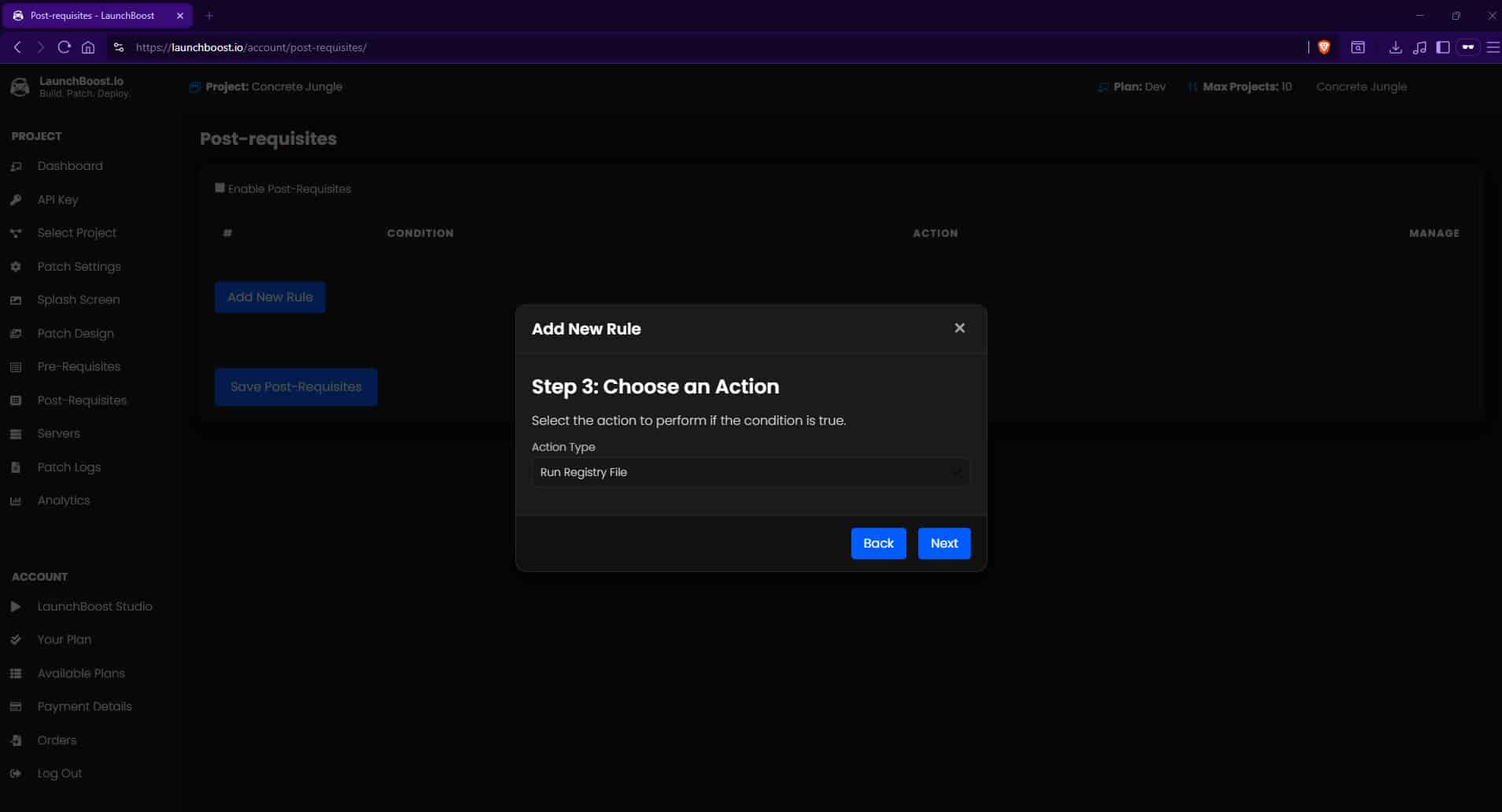
In the next step, choose Run Registry File. Click Next.

In the next screen, just leave the “File Path” blank, as the patch system already knows the path from the registry data.

Click Next again to review the Rule and if you’re happy, click Save Rule.

Important: After adding/editing requisites, you MUST click the Save Post-Requisites button in order to save it to your account.

Conclusion

What happens with this Post-Requisite check is, it will check the registry data you supplied on the user’s computer and if everything lines up correctly and the game.exe file exists, it will launch that executable.

If it doesn’t exist, the post-requisite will do nothing.

You can add another rule, the same way but using the condition Registry File Does Not Exist and if it doesn’t it means the game isn’t installed so you can get the post-requisite to Download and Run an installer.

This is just one example. You can use this same tutorial for adding rules to check for things like other games or applications installed etc.

Post-Requisites are powerful to use and we recommend you use them to your advantage to perform checks and run actions based off the outcome of those checks.